
I taught the class four times, and each time I received positive feedback from the students. Each offering of the class was fully enrolled and had a wait-list of students. See the full presentation on SlideShare -- http://www.slideshare.net/TeresaBeary/make-visually-stunning-power-points-tips-tricks
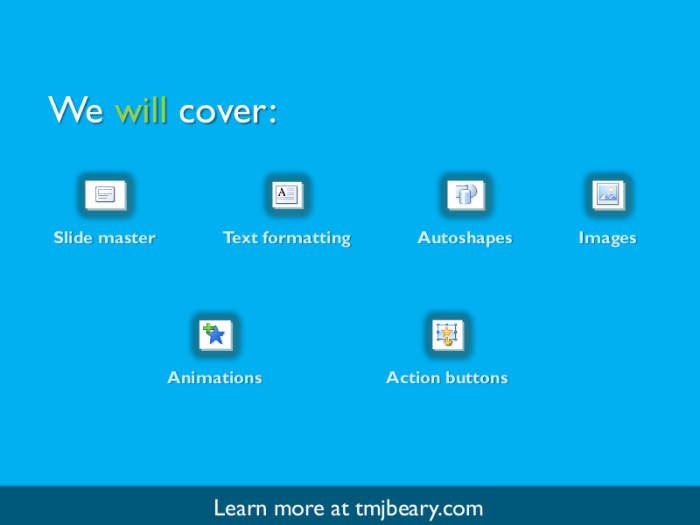
I did a live demo for each section and provided a set of examples slides so students could follow along.
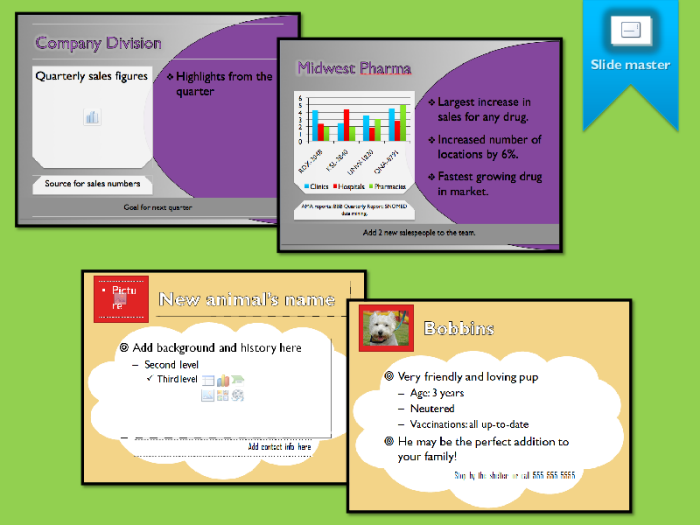
I began the class by showing examples of what they would learn about, and how it could help them create higher quality presentation visuals.
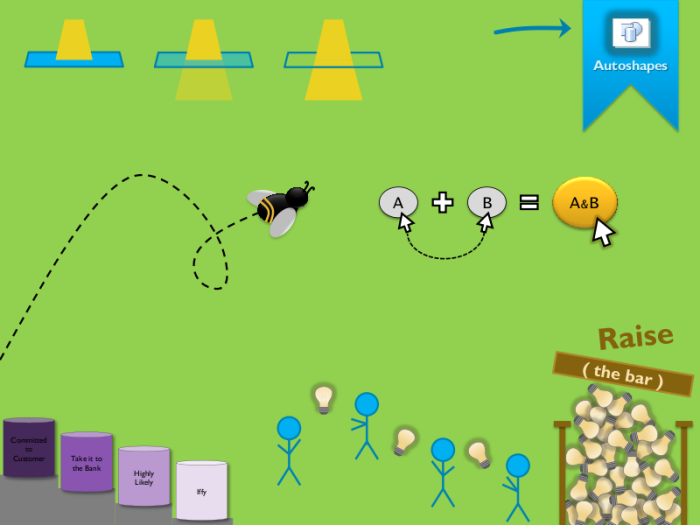
Autoshapes in PowerPoint are a good introduction to vector images, and with some careful formatting you can create some impressive clip art. Everything on this slide was created entirely with the PowerPoint Autoshapes tools.
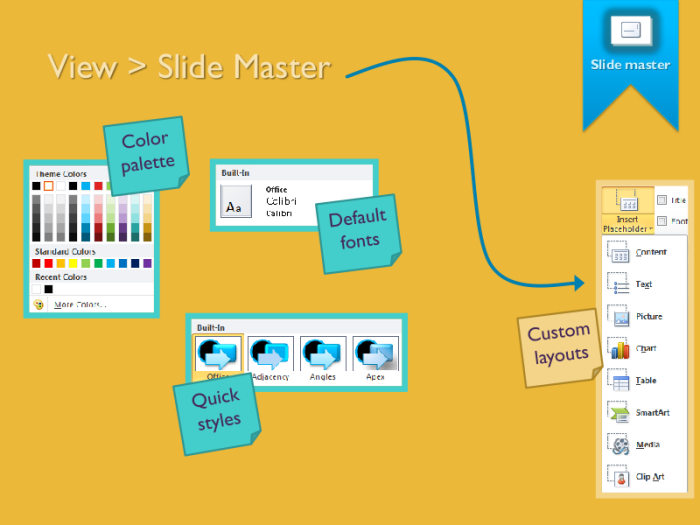
I highlighted the parts of the interface I would be using in my live demos, so students could easily reorient themselves if they became distracted.
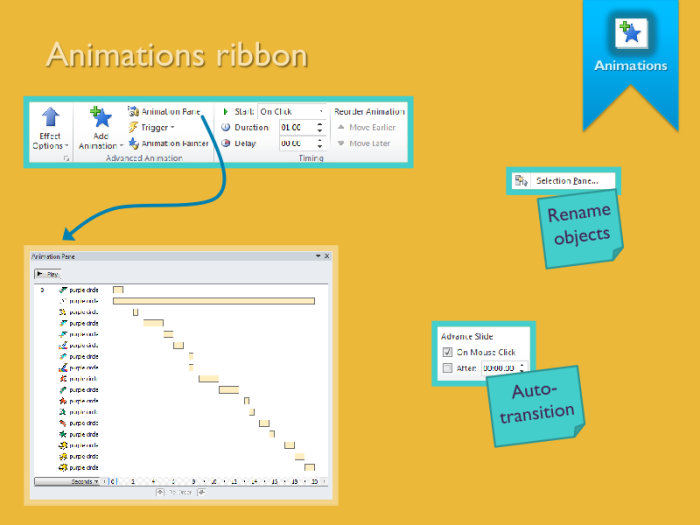
PowerPoint animations hold a special interest for me. Used thoughtfully, you can build some very nice motion graphics. Just see My Career Path project as an example.
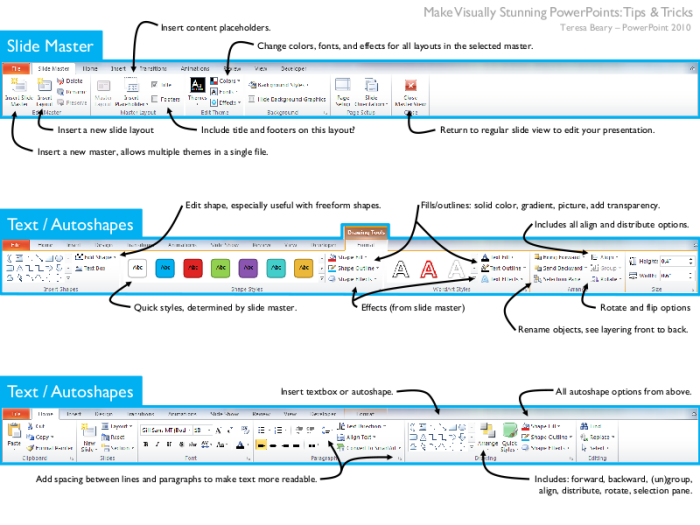
This is one half of the cheat sheet I created for PowerPoint 2010. It calls out the features we covered in class, to help students find some of those elusive buttons. See the full document on SlideShare -- http://www.slideshare.net/TeresaBeary/tc-cheat-sheet
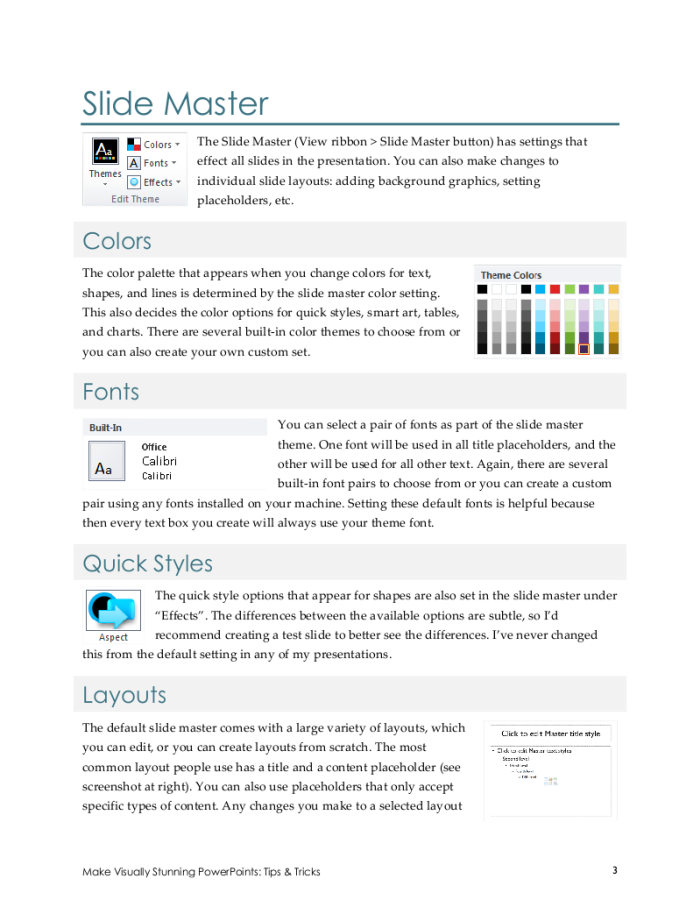
An example page from the training companion I wrote. Everything I covered in class is documented in this handout. That way students have a full explanation to refer to later when they want to use one of the tips they learned. I included screenshots of the interface to improve overall clarity of the instructions. See the full document on SlideShare -- http://www.slideshare.net/TeresaBeary/tc-make-visually-stunning-power-points
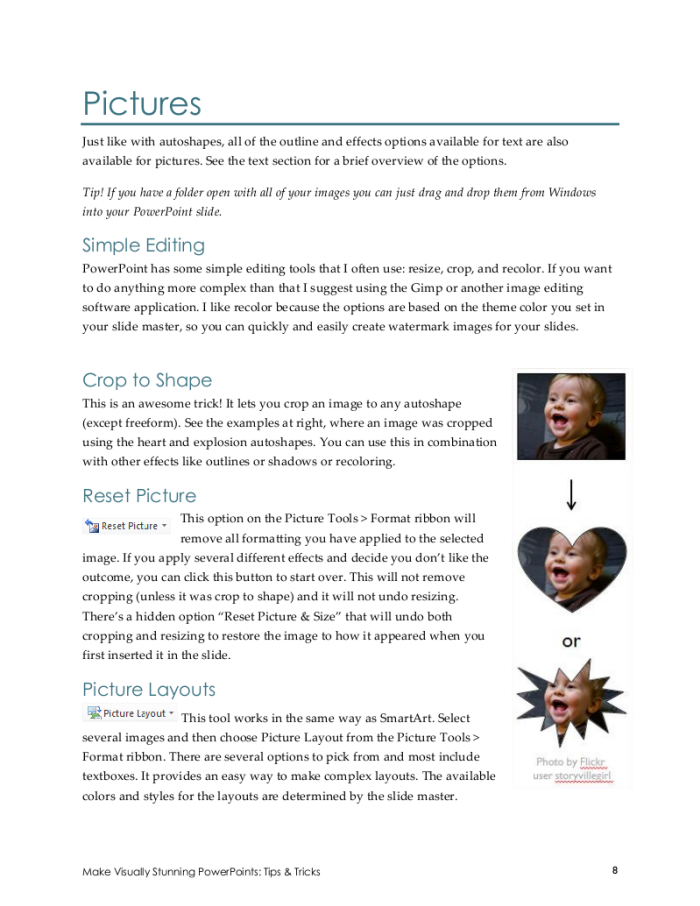
Another page from the training companion. As well as being an example of my qualifications as an educator, it also demonstrates my skills at designing print layouts.
gLike
Make Visually Stunning PowerPoints (Class)
I enjoy teaching and developed this class to teach internally while I worked at Epic. (See the full slides -- http://www.slideshare.net/TeresaBeary/make-visually-stunning-power-points-tips-tricks)
The bulk of the class was a live demonstration and then students had time to practice what we had just covered together. I also created a cheat sheet for the PowerPoint 2010 interface and wrote a full training companion for students to refer to after the class.
